
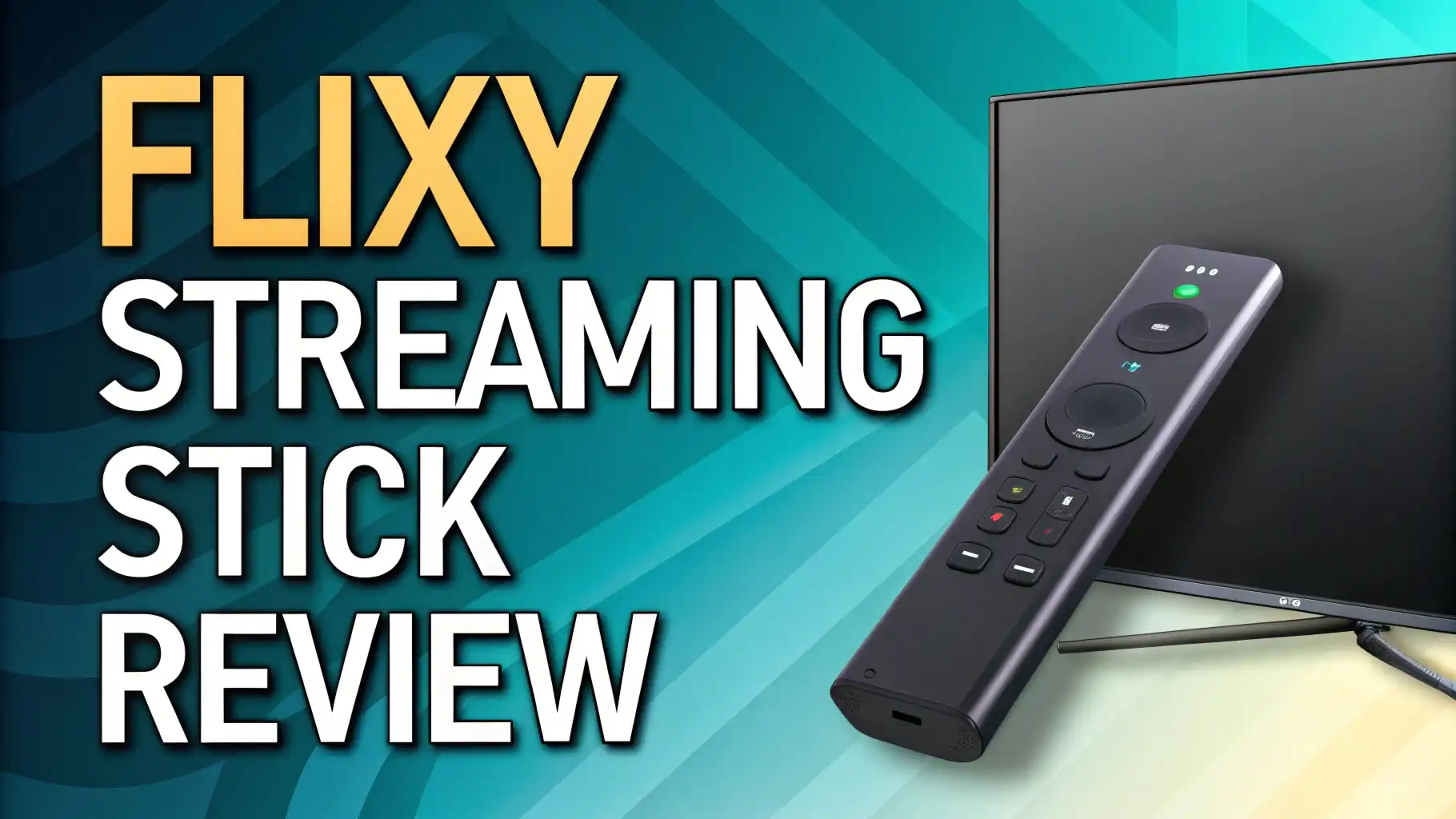
Flixy Streaming Stick Review: Budget Streaming Device
Are you tired of paying monthly fees for cable TV or multiple streaming subscriptions? The Flixy Streaming Stick promises to transform your regular TV into a smart entertainment hub without breaking the bank. This compact device has been making waves in the streaming world with claims of unlimited content access and no recurring fees. But does it live up to the hype, or is it just another overpriced gadget?
In this detailed review, we’ll explore every aspect of the Flixy Streaming Stick. You’ll discover what makes this device unique, how it compares to competitors, and whether it’s worth your investment. We’ll break down the features, performance, setup process, and real user experiences to help you make an informed decision. Whether you’re looking to cut the cord on cable TV or simply want to upgrade your current streaming setup, this comprehensive guide has you covered.

Key Takeaways:
Before diving deep into the details, here are the essential points you should know about the Flixy Streaming Stick:
One-Time Purchase Model: Unlike Fire TV Stick or Roku that require ongoing subscriptions for premium content, Flixy operates on a one-time payment system with no monthly fees. You pay once and access thousands of channels.
Compatible with Any TV: The device works with any television that has an HDMI port, making it perfect for transforming older TVs into smart entertainment centers without buying expensive new equipment.
Decent Hardware Specifications: Flixy comes equipped with 1GB of RAM and 8GB of internal storage, along with a quad-core processor that handles basic streaming tasks smoothly. It supports dual-band Wi-Fi connectivity for stable streaming.
Access to Popular Apps: You can stream content from major platforms like Netflix, YouTube, Hulu, and Amazon Prime Video, though you’ll still need active subscriptions for these premium services.
Voice Remote Control: The package includes a voice-activated remote that makes navigation easier and allows you to search for content using voice commands instead of typing.
Mixed User Reviews: While many users appreciate the affordability and ease of use, some have raised concerns about marketing claims and whether the device truly offers “free unlimited entertainment” as advertised.
What Is the Flixy Streaming Stick?
The Flixy Streaming Stick is a compact media streaming device that plugs directly into your TV’s HDMI port. Think of it as a small computer dedicated to streaming entertainment. The device measures just a few inches long and connects to your home Wi-Fi network to access online content.
At its core, Flixy runs on an Android-based operating system. This means it can run various streaming apps and services. The stick transforms any standard television into a smart TV instantly. You don’t need any technical expertise to set it up.
The device comes with a sleek remote control that includes voice search functionality. This feature allows you to find movies, shows, or channels by simply speaking into the remote. No more endless scrolling through menus or typing on a tiny screen keyboard.
Flixy markets itself as a budget-friendly alternative to expensive smart TVs and traditional streaming devices. The company emphasizes that you won’t need to pay monthly subscription fees to access content. However, it’s important to understand that while the device itself doesn’t charge monthly fees, premium streaming services like Netflix or Hulu still require their own subscriptions.
The stick is designed for simplicity. You plug it in, connect to Wi-Fi, and start streaming within minutes. It’s portable enough to take on trips, making it convenient for hotel rooms or vacation rentals. The lightweight design means you can easily pack it in your luggage.
Flixy Streaming Stick Technical Specifications and Hardware
Understanding the technical capabilities of the Flixy Streaming Stick helps you set realistic expectations for performance. Let’s break down what’s inside this compact device.
The Flixy Streaming Stick features a quad-core processor that handles streaming tasks efficiently. This processor works alongside 1GB of RAM, which is adequate for running streaming apps and basic multitasking. While this isn’t cutting-edge hardware, it’s sufficient for standard definition and 4K streaming when your internet connection is strong.
Storage capacity sits at 8GB internally. This space is used for system files, app installations, and cached data. You won’t store movies or shows directly on the device since streaming relies on internet connectivity. The storage is enough for installing your favorite streaming apps.
The device supports dual-band Wi-Fi connectivity, meaning it can connect to both 2.4GHz and 5GHz networks. This flexibility helps you maintain stable streaming performance. The 5GHz band typically offers faster speeds and less interference, making it ideal for 4K content streaming.
Video output supports resolutions up to 4K Ultra HD with HDR support. This means if you have a 4K TV and high-speed internet, you can enjoy crisp, detailed picture quality. The device also supports standard HD and Full HD resolutions for older televisions.
The HDMI connection provides both video and audio output. The stick supports various audio formats, ensuring compatibility with your TV’s speakers or external sound systems. Power comes through a USB cable that plugs into your TV’s USB port or a wall adapter.
Setting Up Your Flixy Streaming Stick: Step-by-Step Guide
Getting your Flixy Streaming Stick up and running is straightforward. The setup process takes about 10 to 15 minutes from start to finish. Here’s what you need to do.
First, unbox your Flixy Streaming Stick package. Inside, you’ll find the streaming stick itself, a voice remote control, a USB power cable, and a power adapter. Some packages may include batteries for the remote.
Locate the HDMI port on your television. This port is usually on the back or side of your TV. It’s a thin rectangular slot labeled “HDMI.” Firmly insert the Flixy Streaming Stick into this port. Make sure it’s pushed in completely.
Connect the power cable to the micro-USB port on the Flixy Stick. Plug the other end into either your TV’s USB port or use the wall adapter and plug it into an electrical outlet. Using the wall adapter often provides more stable power.
Turn on your television and use your TV remote to select the correct HDMI input channel. Most TVs have multiple HDMI ports numbered 1, 2, 3, etc. Select the number that matches where you plugged in the Flixy Stick.
Once the device powers on, you’ll see the Flixy welcome screen. Follow the on-screen instructions. The setup wizard will guide you through language selection, Wi-Fi connection, and initial configuration.
Connect to your Wi-Fi network by selecting it from the list of available networks. Enter your Wi-Fi password using the remote control. The device will test the connection and confirm when it’s successfully connected.
The system may prompt you to update the software to the latest version. Allow this update to complete. It ensures you have the newest features and security patches. This process might take several minutes depending on your internet speed.
Top 3 Alternatives for Flixy Streaming Stick
If you’re considering the Flixy Streaming Stick, you should also evaluate these popular alternatives that dominate the streaming device market. Each offers unique features and established ecosystems.

- Advanced 4K streaming - Elevate your entertainment with the next generation of our best-selling 4K stick, with improved streaming performance optimized for 4K TVs.
- Play Xbox games, no console required – Stream Call of Duty: Black Ops 7, Hogwarts Legacy, Outer Worlds 2, Ninja Gaiden 4, and hundreds of games on your Fire TV Stick 4K with Xbox Game Pass via cloud...
- Smarter searching starts here with Alexa – Find movies by actor, plot, and even iconic quotes. Try saying, "Alexa show me action movies with car chases."

The Amazon Fire TV Stick 4K is the most popular streaming device in America. It offers exceptional value with AI-powered search, Wi-Fi 6 support, and access to over 1.8 million movies and shows. The device integrates seamlessly with Alexa for voice control and smart home management. You get free and live TV channels alongside all major streaming apps. With regular software updates and a massive content library, it’s a reliable choice backed by Amazon’s ecosystem.

- Stunning 4K and Dolby Vision streaming made simple: With America’s TV streaming platform, exploring popular apps—plus tons of free movies, shows, and live TV—is as easy as it is fun. Based on...
- Breathtaking picture quality: Stunningly sharp 4K picture brings out rich detail in your entertainment with four times the resolution of HD. Watch as colors pop off your screen and enjoy lifelike...
- Seamless streaming for any room: With Roku Streaming Stick 4K, watch your favorite entertainment on any TV in the house, even in rooms farther from your router thanks to the long-range Wi-Fi receiver
The Roku Streaming Stick 4K delivers outstanding performance with support for HDR and Dolby Vision. Roku’s interface is known for being user-friendly and unbiased, showing content from all your apps equally without pushing any particular service. The long-range Wi-Fi capability ensures stable streaming even in larger homes. The Roku Channel offers thousands of free movies and shows, and the voice remote works brilliantly for hands-free searching.

- The Google TV Streamer (4K) delivers your favorite entertainment quickly, easily, and personalized to you[1,2]
- HDMI 2.1 cable required (sold separately)
- See movies and TV shows from all your services right from your home screen[2]; and find new things to watch with tailored recommendations for everyone in your home based on their interests and viewing...
The Google TV Streamer 4K brings premium features to your entertainment setup. With 32GB of storage and smart home control integration, it’s more than just a streaming device. The voice search remote powered by Google Assistant understands natural language queries exceptionally well. The interface learns your preferences over time, offering personalized recommendations across all your streaming services. It’s the most advanced option for those invested in the Google ecosystem.
Content Availability: What Can You Actually Watch?
One of the most important questions about any streaming device is what content you can access. The Flixy Streaming Stick’s content library deserves careful examination.
The device supports all major streaming platforms including Netflix, Amazon Prime Video, Hulu, Disney+, HBO Max, and YouTube. However, you need active subscriptions to these services. The Flixy Stick doesn’t provide free access to premium content despite some marketing materials suggesting otherwise.
You can also access free streaming services like Pluto TV, Tubi, Crackle, and YouTube. These platforms offer thousands of movies, TV shows, and live channels without requiring subscriptions. The content includes older movies, classic TV series, and ad-supported programming.
Live TV options are available through various apps. Services like Sling TV, YouTube TV, and Hulu + Live TV work on the device. These require their own monthly subscriptions. Some free live TV channels are accessible through apps like Pluto TV.
The device includes a built-in content aggregator that helps you find shows and movies across different platforms. This AI-powered feature searches multiple streaming services simultaneously. You can see where specific content is available and whether it requires a subscription.
International content is accessible depending on your location and the apps you install. Many streaming services offer regional content libraries. You might need a VPN service to access content from other countries, though this falls into a legal gray area.
Sports content is available through apps like ESPN, Fox Sports, and specialized sports streaming services. Live sports require subscriptions to specific services or cable alternatives. The device handles live streaming well, though performance depends heavily on your internet connection speed.
Performance and Streaming Quality: Does It Deliver?
Real-world performance determines whether a streaming device is worth buying. The Flixy Streaming Stick’s performance varies based on several factors.
Video quality can reach 4K Ultra HD when conditions are optimal. This requires a 4K television, high-speed internet (at least 25 Mbps), and content that’s available in 4K. Most users will experience Full HD 1080p streaming consistently, which looks sharp and clear on modern TVs.
The quad-core processor handles basic tasks smoothly. App launching takes a few seconds, and navigation through menus feels responsive. However, when running multiple apps simultaneously or switching between heavy applications, you might notice slight delays.
Buffering can occur during peak internet usage times or if your Wi-Fi signal is weak. The device performs best when placed close to your router or when using a 5GHz Wi-Fi connection. Wired Ethernet connection isn’t available on this model, unlike some premium competitors.
Loading times for apps and content are generally acceptable. Popular streaming apps load within 5 to 10 seconds. Starting a movie or TV show takes another 5 to 15 seconds depending on the service and your internet speed.
The device handles multitasking adequately for its price range. You can have several apps installed and switch between them without major issues. The 1GB of RAM is the minimum needed for smooth streaming, but it doesn’t leave much room for advanced features.
Heat management is decent. The stick gets warm during extended use but doesn’t overheat. Good ventilation around the device helps maintain optimal temperatures. Avoid enclosing it in tight spaces or covering it with objects.
User Interface and Navigation Experience
The interface you interact with daily makes a huge difference in your streaming experience. Flixy’s approach to UI design affects how easily you find and enjoy content.
The home screen displays recently used apps, recommended content, and quick access shortcuts. The layout is straightforward with large icons that are easy to see from across the room. The interface borrows heavily from standard Android TV designs.
Navigation uses a simple grid system. You move left, right, up, and down using the directional buttons on the remote. The learning curve is minimal, even for users unfamiliar with streaming devices. Most people adapt to the interface within minutes.
The voice search feature works reasonably well. You press the microphone button on the remote and speak your query. The device searches across installed apps and displays results. Recognition accuracy is decent for clear speech in quiet environments.
App organization lets you customize your home screen to some extent. You can rearrange app icons and remove ones you don’t use. This personalization helps you access favorite streaming services faster.
The settings menu provides access to network configuration, display options, audio settings, and system updates. These controls are organized logically, making it easy to adjust preferences. Technical settings are available for advanced users who want to fine-tune performance.
Content browsing within the Flixy interface aggregates shows and movies from different services. You can browse by genre, popularity, or new releases. However, clicking on content often redirects you to the specific app where it’s available.
Remote Control Features and Functionality
The remote control is your primary tool for interacting with the Flixy Streaming Stick. Its design and features directly impact your daily user experience.
The remote uses infrared and Bluetooth technology for connecting to the device. This dual approach means you don’t need direct line-of-sight for most functions. The remote works even when pointing at different angles.
Physical buttons include directional navigation, select/OK, back, home, voice search, volume controls, and power. Some versions include dedicated shortcut buttons for popular streaming services. The button layout is intuitive and similar to traditional TV remotes.
The voice search button activates the microphone built into the remote. You can search for movies, shows, actors, or genres by speaking naturally. The voice recognition understands common phrases like “show me action movies” or “find comedies from 2024.”
Volume controls directly adjust your TV’s volume, which is convenient. You don’t need to juggle two remotes. The power button also controls your TV’s power state, assuming your TV supports HDMI-CEC (Consumer Electronics Control).
Battery life typically lasts several months with regular use. The remote uses standard AAA batteries that are easy to replace. Some competing devices use rechargeable remotes, but replaceable batteries mean you’re never without a remote while charging.
The remote’s size and weight make it comfortable to hold. It’s not too small or too large for most hands. The buttons have good tactile feedback, so you know when you’ve pressed them. The design is simple and functional rather than premium.
Cost Analysis: Is Flixy Worth the Investment?
Understanding the total cost of ownership helps you make an informed purchasing decision. Let’s break down what you’re actually paying for with the Flixy Streaming Stick.
The upfront cost of the Flixy Streaming Stick typically ranges from $49 to $74 depending on promotions and where you purchase it. The company frequently offers discounts that can bring the price down significantly. Compare this to competitors: Fire TV Stick 4K costs around $30-40, and Roku Streaming Stick 4K is similarly priced.
No monthly fees are required to use the Flixy device itself. This is a key selling point. However, this doesn’t mean all content is free. You’ll still need subscriptions to premium services like Netflix, Disney+, or Hulu to access their content libraries.
Free content options do exist through apps like Pluto TV, Tubi, and The Roku Channel (which you can access on most devices). These ad-supported services provide thousands of hours of entertainment without subscription fees. The Flixy Stick accesses these just like any other streaming device.
When comparing total cost over time, consider what you’re replacing. If you’re cutting a $100 monthly cable bill, the device pays for itself in less than a month. If you’re adding it to existing streaming subscriptions, you’re simply changing how you access content.
Value proposition depends on your specific needs. For someone with an old TV and no smart features, any streaming stick provides good value. However, established brands like Roku and Amazon offer similar or better hardware at comparable or lower prices with more established support systems.
The hidden costs include the electricity to power the device and potentially faster internet plans to support 4K streaming. These costs are minimal but worth considering. You might also want to purchase an HDMI extender or better Wi-Fi equipment for optimal performance.
Comparing Flixy to Fire TV Stick and Roku
Direct comparisons help you understand where Flixy stands in the competitive streaming device market. Let’s examine how it stacks up against the two most popular alternatives.
Amazon Fire TV Stick 4K offers more polished software with regular updates backed by one of the world’s largest tech companies. The Alexa integration provides smart home control and sophisticated voice commands. Fire TV has better app optimization and generally smoother performance. The Amazon ecosystem integration is valuable if you’re already an Amazon customer.
Roku Streaming Stick 4K is known for its neutral platform that doesn’t favor any particular streaming service. The Roku Channel offers excellent free content. The interface is clean, fast, and extremely user-friendly. Roku receives consistent software updates and has excellent customer support. The long-range Wi-Fi capability is superior to most competitors.
Flixy’s advantages include its one-time purchase marketing and potentially lower entry price during sales. The device works adequately for basic streaming needs. For users who prioritize initial cost over long-term support and features, it might appeal.
Hardware comparison shows Flixy’s 1GB RAM is at the lower end. Fire TV Stick 4K and Roku Streaming Stick 4K offer better processors and more RAM, resulting in smoother performance. Both competitors support more advanced features like Dolby Atmos and Dolby Vision.
App availability is generally similar across all three devices, but Fire TV and Roku often get new apps first. Developer support for these established platforms is stronger. Updates and optimizations happen more frequently on Fire TV and Roku.
Customer support is where established brands shine. Amazon and Roku offer comprehensive support systems, regular software updates, and warranty coverage. Flixy’s support infrastructure is less established, which could be problematic if you encounter issues.
Real User Experiences and Customer Reviews
Actual user feedback provides valuable insights beyond marketing claims. Let’s examine what real customers are saying about their Flixy Streaming Stick experiences.
Positive reviews often highlight the easy setup process and straightforward interface. Many users appreciate that they can transform older TVs into smart devices affordably. The voice remote receives praise for making search more convenient. Users who primarily watch free content through apps like YouTube and Pluto TV express satisfaction.
Negative feedback frequently mentions misleading marketing claims. Some customers expected truly unlimited free content without any subscriptions. When they discovered that Netflix, Hulu, and other premium services still require monthly payments, they felt deceived. This disconnect between marketing and reality is a common complaint.
Performance issues appear in various reviews. Some users report buffering problems, slow app loading, and occasional freezing. These issues often relate to Wi-Fi signal strength or internet speed limitations rather than the device itself. However, some customers note that competing devices handle these situations better.
Customer service experiences vary widely. Some users report helpful support when encountering problems, while others describe difficulty reaching support or receiving adequate solutions. The inconsistent support quality reflects the company’s smaller infrastructure compared to major brands.
Long-term satisfaction seems mixed. Users who understood what they were purchasing and had realistic expectations tend to be more satisfied. Those who expected the device to replace all paid streaming services express disappointment. The device works as a basic streaming stick but doesn’t offer unique advantages over established competitors.
Common praise points include portability, compact design, and adequate performance for casual streaming. Users appreciate the voice remote and the ability to access multiple streaming apps from one device. The device fulfills basic streaming needs for budget-conscious consumers.
Connectivity and Wi-Fi Performance
Strong, reliable connectivity is crucial for smooth streaming. The Flixy Streaming Stick’s network performance directly affects your viewing experience.
Dual-band Wi-Fi support means the device can connect to both 2.4GHz and 5GHz networks. The 2.4GHz band offers better range but slower speeds, while 5GHz provides faster speeds over shorter distances. This flexibility helps you optimize performance based on your home setup.
Wi-Fi signal strength matters significantly. The Flixy Stick performs best when your router is relatively close or has strong signal coverage. Walls, floors, and interference from other devices can weaken the signal. Consider router placement or Wi-Fi extenders if you experience connectivity issues.
Recommended internet speeds vary by content quality. Standard definition streaming requires at least 3 Mbps, HD needs 5-8 Mbps, and 4K streaming demands 25 Mbps or higher. Test your internet speed at different times to ensure consistent performance during peak usage hours.
The device doesn’t include an Ethernet port, unlike some premium streaming devices. This means you’re limited to wireless connections. For the most stable streaming experience, especially with 4K content, a wired connection is ideal but not available on this model.
Connection stability depends on your overall network quality. A crowded Wi-Fi environment with many devices competing for bandwidth can cause buffering and quality drops. Consider upgrading your router or managing connected devices for better performance.
Initial connection setup is straightforward. The device scans for available networks, you select yours, enter the password, and connect. Reconnection after power cycles happens automatically. The device remembers your network settings.
Content Discovery and Search Capabilities
Finding something to watch should be easy and enjoyable. The Flixy Streaming Stick’s search and discovery features help you navigate the vast streaming landscape.
Universal search scans across installed streaming apps when you search for content. Type or speak a movie title, actor name, or genre, and the device shows where you can watch it. This saves time compared to searching within each app individually.
Voice search functionality makes finding content faster. Press the microphone button on the remote and speak your query. The system understands natural language like “show me sci-fi movies” or “find documentaries about space.” Recognition accuracy improves over time.
Personalized recommendations appear on the home screen based on your viewing habits. The AI analyzes what you watch and suggests similar content. This feature works better after you’ve used the device for a while and established viewing patterns.
Genre browsing lets you explore content categories like action, comedy, drama, documentary, and kids’ programming. Each category displays content available across your installed apps. This browsing method helps when you’re not sure what to watch.
Trending and popular sections showcase what other users are watching. These curated lists help you discover new shows and movies. The content updates regularly to reflect current viewing trends.
The search experience has limitations. Results only include apps you’ve installed. If you haven’t installed HBO Max, for example, that content won’t appear in searches. The search also can’t distinguish between free and subscription-required content, which can be frustrating.
Parental Controls and Family Safety Features
Families need tools to manage what children can access. The Flixy Streaming Stick includes basic parental control features.
Profile creation allows different family members to have separate viewing profiles. Each profile can have customized settings and restrictions. This helps keep kids’ content separate from adult programming.
PIN protection lets you lock certain apps or content ratings. Set a four-digit PIN that’s required to access restricted content. This prevents children from watching inappropriate material without supervision.
Content rating filters block content above specified ratings. You can set restrictions based on TV ratings (TV-Y, TV-PG, TV-14, etc.) and movie ratings (G, PG, PG-13, R). The device blocks content that exceeds your chosen ratings.
App restrictions allow you to completely block specific apps. If you don’t want children accessing certain streaming services, you can require PIN entry before opening those apps. This gives you control over which platforms kids can use.
Viewing history can be monitored through individual profiles. Parents can check what content children have watched. This visibility helps you ensure kids are accessing appropriate content.
Limitations exist in the parental control system. The restrictions only work within the Flixy interface. Individual streaming apps have their own parental controls that you must configure separately. A determined child might find workarounds.
Audio Quality and Sound Features
Good audio enhances your streaming experience significantly. The Flixy Streaming Stick’s audio capabilities meet basic needs but have limitations.
Standard audio output goes through your TV’s speakers via the HDMI connection. The device supports common audio formats including stereo, Dolby Digital, and DTS. Most users will experience adequate sound quality for regular viewing.
Volume control through the Flixy remote adjusts your TV’s volume directly when HDMI-CEC is enabled. This convenience means you don’t need to switch between remotes constantly. The integration works with most modern televisions.
External sound systems can be connected through your TV’s audio output. If you have a soundbar or home theater system, connect it to your TV and the Flixy audio will play through it. The device doesn’t have direct audio output options.
Dolby Atmos support is not included on the Flixy Streaming Stick. This advanced audio format creates immersive three-dimensional sound. Premium competitors like Fire TV Stick 4K Max and Apple TV 4K offer Atmos support for enhanced audio experiences.
Audio sync issues occasionally occur where sound doesn’t match lip movements on screen. This problem usually relates to TV settings or HDMI connection rather than the device itself. Adjusting audio delay settings in your TV menu often fixes this.
Bluetooth audio capability lets you connect wireless headphones or speakers. This feature is useful for late-night viewing without disturbing others. The connection process is straightforward through the settings menu.
Updates and Long-Term Support
Software updates and ongoing support determine how long your device remains useful. The Flixy Streaming Stick’s update track record deserves examination.
Firmware updates add new features, fix bugs, and improve performance. The Flixy device receives occasional updates, though less frequently than major competitors. Check for updates manually through the settings menu if automatic updates don’t occur.
Security patches are important for protecting your personal information and network. The update frequency for security fixes appears slower compared to Fire TV and Roku. This could potentially leave vulnerabilities unpatched longer.
App compatibility depends on developers supporting the device. Major streaming services typically maintain their apps well. However, smaller apps might not receive updates as regularly, potentially causing compatibility issues over time.
Long-term viability is uncertain for Flixy compared to established brands. Amazon and Roku have decade-long track records of supporting older devices. Flixy’s newer market presence means less certainty about how long they’ll provide support.
Feature additions through updates are minimal. Don’t expect significant new capabilities added through software updates. The device functionality remains largely static after purchase, unlike competitors that regularly add features.
Planned obsolescence concerns exist with any tech device. Major brands typically support devices for 4-5 years minimum. Flixy’s commitment to long-term support is less clear. Consider this if you want a device that lasts many years.
Troubleshooting Common Issues
Every device encounters problems occasionally. Here are solutions to common Flixy Streaming Stick issues.
Device won’t power on: Check that the power cable is firmly connected to both the stick and power source. Try using the wall adapter instead of TV USB power. Some TV USB ports don’t provide enough power for streaming sticks.
No picture on TV: Verify you’ve selected the correct HDMI input on your TV. Try unplugging the stick and plugging it back in. Test with a different HDMI port if your TV has multiple options.
Wi-Fi won’t connect: Move your router closer to the device or move the device closer to the router. Check that you’re entering the correct Wi-Fi password. Restart your router and the Flixy Stick. Try connecting to a different Wi-Fi network to isolate the problem.
Buffering and stuttering: Test your internet speed to ensure it meets streaming requirements. Close other devices using your network. Switch to 5GHz Wi-Fi if available. Lower the video quality settings in the streaming app.
Apps crashing or freezing: Clear the app cache through settings. Uninstall and reinstall problematic apps. Restart the device by unplugging it for 30 seconds. Check for software updates that might fix stability issues.
Remote not working: Replace the batteries in the remote. Re-pair the remote with the device through settings. Check for obstructions between the remote and device. Ensure the device is receiving power.
Audio but no video: Check HDMI cable connections. Try a different HDMI port. Verify your TV’s resolution settings match the device output. Adjust display settings in the Flixy menu.
Final Verdict: Should You Buy the Flixy Streaming Stick?
After examining all aspects of the Flixy Streaming Stick, let’s determine who should consider buying this device and who should look elsewhere.
The Flixy Streaming Stick works adequately as a basic streaming device. It accomplishes the fundamental task of bringing streaming apps to your TV. The setup is simple, the interface is straightforward, and the performance is acceptable for standard streaming needs.
However, it doesn’t offer significant advantages over established competitors. The Fire TV Stick 4K and Roku Streaming Stick 4K provide better hardware, more frequent updates, superior customer support, and often lower prices. These established devices represent better value for most consumers.
You might consider Flixy if you find it at a significantly discounted price and understand exactly what you’re getting. It serves as an acceptable option for transforming an old TV into a smart device when budget is the primary concern.
Avoid this device if you expect truly free unlimited content without subscriptions. The marketing can be misleading. Also avoid it if you want long-term reliability, regular updates, and strong customer support. Established brands deliver better experiences in these areas.
Better alternatives exist at similar or lower price points. The Amazon Fire TV Stick 4K frequently goes on sale for $30 or less. The Roku Streaming Stick 4K offers superior performance at comparable prices. Google Chromecast provides excellent integration with Google services.
The bottom line: While the Flixy Streaming Stick functions as advertised, it doesn’t provide compelling reasons to choose it over proven competitors. The established brands offer better value, performance, and support. Save your money and invest in a Fire TV Stick, Roku, or Google device instead.
Frequently Asked Questions
Does the Flixy Streaming Stick really offer free unlimited streaming?
No, this is a common misconception from marketing materials. The device itself doesn’t charge monthly fees, but you still need subscriptions to premium services like Netflix, Hulu, and Disney+. You can access free content through apps like YouTube, Pluto TV, and Tubi, but these are available on any streaming device. The “free unlimited streaming” claim refers to no monthly device fees, not unlimited free content.
Will the Flixy Streaming Stick work with my old TV?
Yes, as long as your TV has an HDMI port. Most televisions manufactured after 2008 include HDMI ports. Simply plug the Flixy Stick into the HDMI port and you’re ready to stream. If your TV only has component or composite inputs, you’ll need an HDMI converter, which adds extra cost.
How does Flixy compare to Fire TV Stick in terms of performance?
The Fire TV Stick 4K generally outperforms the Flixy Streaming Stick. Fire TV offers better hardware specifications, smoother navigation, more frequent software updates, and superior app optimization. Fire TV also includes advanced features like Dolby Atmos support and better voice control through Alexa. The Fire TV ecosystem is more mature and reliable.
Can I use the Flixy Streaming Stick without internet?
No, streaming devices require internet connectivity to function. All content is streamed from online services, so a reliable internet connection is essential. You’ll need at least 5-8 Mbps for HD streaming and 25 Mbps or higher for 4K content. Without internet, the device essentially becomes non-functional.
Is the Flixy Streaming Stick legal and safe to use?
The device itself is legal as it’s simply a streaming hardware platform. However, how you use it determines legality. Accessing content through legitimate apps with proper subscriptions is completely legal. Some third-party apps might offer pirated content, which is illegal. Stick to official streaming services and free legal platforms to ensure you’re using the device lawfully.
What streaming services are available on the Flixy Streaming Stick?
The device supports all major streaming platforms including Netflix, Amazon Prime Video, Hulu, Disney+, HBO Max, YouTube, and Apple TV+. You can also access free services like Pluto TV, Tubi, Crackle, and The Roku Channel. App availability depends on your region. Remember that premium services require their own subscriptions even though the device itself has no monthly fee.

Sili is a tech reviewer who cuts through the hype to find AI tools and gadgets that make life easier. She shares honest reviews and simple guides for everyday tech users.
Last update on 2026-01-15 / Affiliate links / Images from Amazon Product Advertising API

