Wacom MovinkPad 11 Drawing Tablet Review: Portable Digital Art Studio
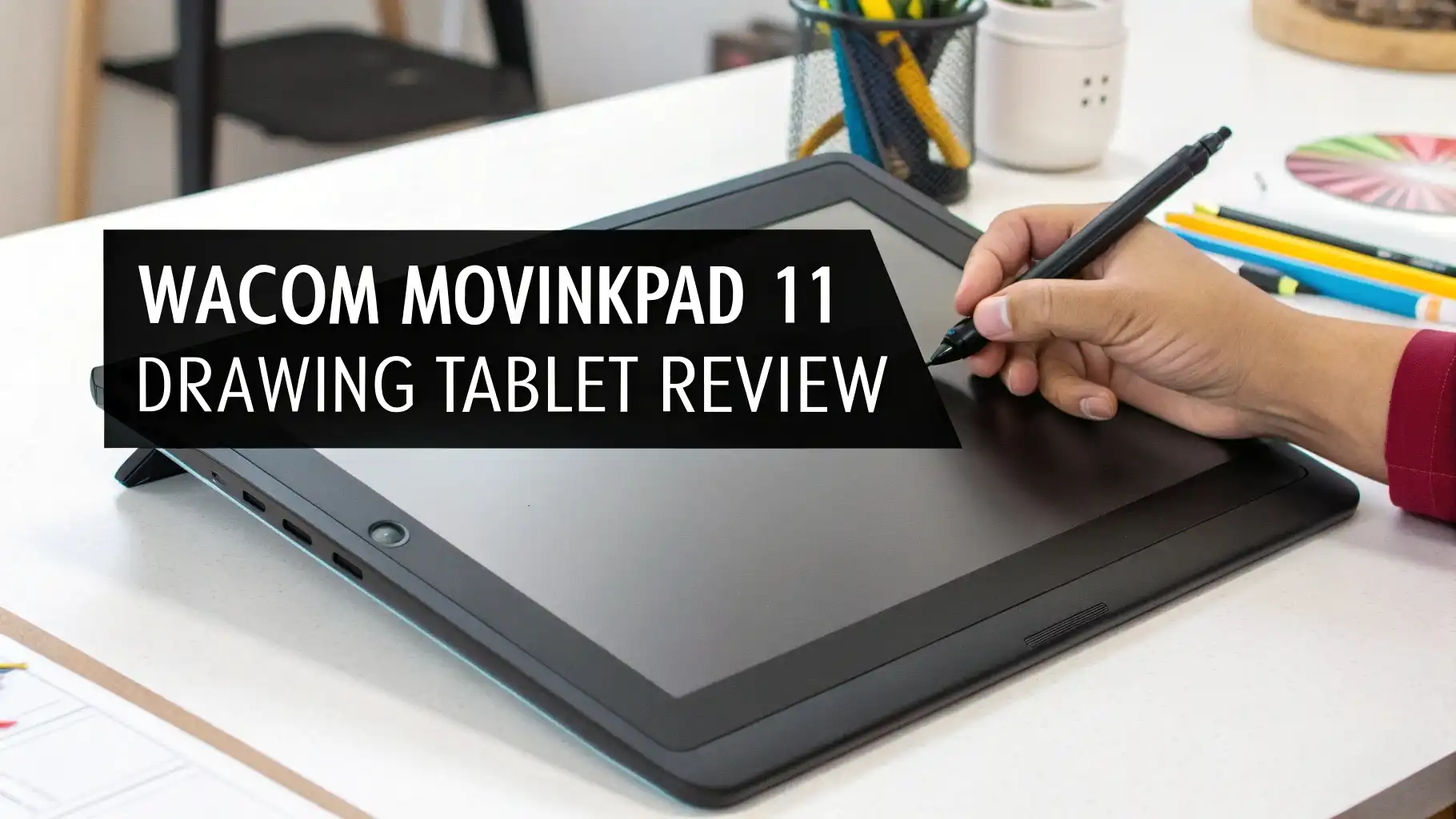
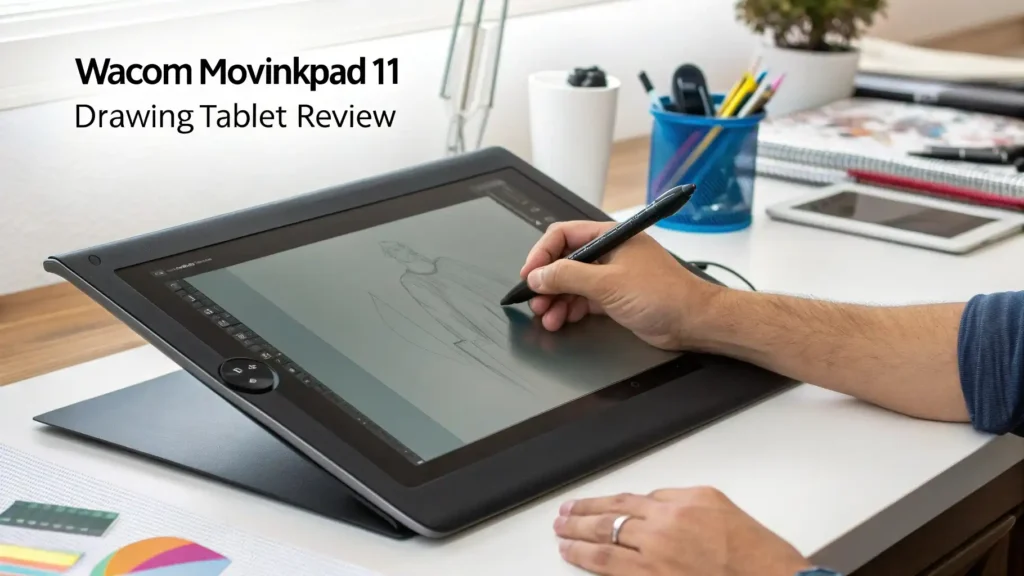
Are you tired of being chained to your desk when creativity strikes? Do you want a drawing tablet that goes wherever inspiration takes you? The Wacom MovinkPad 11 might be exactly what you need. This standalone drawing tablet combines professional grade pen technology with the freedom of Android 14, creating a device that works like a traditional tablet but draws like a professional pen display.
Artists no longer need to choose between portability and performance. The MovinkPad 11 delivers both in a sleek, lightweight package that fits in your bag. Whether you sketch in coffee shops, draw on trains, or create art in parks, this tablet becomes your personal studio.
Key Takeaways:
Professional Drawing Experience: The Wacom MovinkPad 11 uses the battery free Pro Pen 3 with 8,192 pressure levels, delivering the same precision that professional artists trust. You get smooth, accurate strokes without lag or jitter.
True Standalone Operation: This tablet runs Android 14 with 8GB RAM and 128GB storage. You do not need a computer, laptop, or smartphone. Everything you need lives inside this single device.
Portable and Lightweight: Weighing just 1.3 pounds with an 11.45 inch display, this tablet travels anywhere your sketchbook can go. The thin profile slips into most bags without adding bulk.
Quick Draw Feature: Press and hold the pen on the screen during sleep mode to instantly launch Wacom Canvas. Your ideas get captured the moment inspiration strikes, just like opening a sketchbook.
Complete Software Package: The device includes Wacom Canvas for sketching and CLIP STUDIO PAINT DEBUT with a 2 year license. You get professional creative tools right out of the box.
Wacom MovinkPad 11 Overview

- ALL-IN-ONE DESIGN: 11.45" anti-glare etched glass screen, Android 14, 8 GB memory/128 GB storage, battery-free, slim barrel Pro Pen 3, no computer needed; comes with Wacom Canvas sketching app and 2...
- QUICK DRAW READY: Tap and hold the pen on screen to instantly launch Wacom Canvas and start sketching the moment inspiration strikes, just like opening a sketchbook - seamlessly transition to other...
- BEST-IN-CLASS PEN PERFORMANCE: Designed for MovinkPad, this slim version of Wacom Pro Pen 3, delivers 8,192 pressure levels, has three buttons, and comes with replacement nibs stored in the pen's back...

The Wacom MovinkPad 11 represents a new direction in digital art creation. Wacom took their decades of pen tablet expertise and combined it with standalone computing power. The result is a device that needs nothing else to function. You pick it up, turn it on, and start creating.
This tablet measures 266 x 182 x 7 mm, making it incredibly slim. The 11.45 inch display provides enough workspace for detailed drawings without becoming unwieldy. The anti glare etched glass screen feels natural under your pen, reducing reflections that can distract from your work. The matte surface texture gives just enough resistance, mimicking the feel of drawing on paper.
The device runs on a Mediatek Helio G99 processor. This chip handles drawing apps smoothly while maintaining good battery life. The 7,700mAh battery keeps you creating for hours between charges. You can sketch on a long flight or spend an afternoon in the park without hunting for outlets.
Artists who have used iPads or other drawing tablets will appreciate the familiar Android interface. The tablet connects via WiFi 5 and Bluetooth 5.2. You download apps from the Google Play Store just like any Android device. This opens up access to thousands of creative applications beyond the included software.
What Makes the Pro Pen 3 Special
The Wacom Pro Pen 3 sets this tablet apart from competitors. This pen never needs charging or batteries. Electromagnetic resonance technology powers the pen through the tablet surface. You never experience that frustrating moment when your stylus dies mid creation.
The pen offers 8,192 pressure levels. Each stroke responds precisely to how hard you press. Light touches create delicate lines. Firm pressure produces bold, thick strokes. This pressure sensitivity gives you the same control as traditional art tools.
Tilt recognition works up to 60 degrees. Angle your pen to create shading effects naturally. The pen responds like a real pencil or brush tilted on paper. Many drawing programs use tilt data to adjust line width and opacity.
The slim barrel design fits comfortably in your hand. Three programmable side buttons sit where your fingers naturally rest. You can customize these buttons for common functions like undo, eraser, or changing brush size. This reduces the need to constantly access on screen menus.
Wacom designed the Pro Pen 3 to be customizable. You can purchase different grips to change the thickness. Optional nib types include standard plastic and felt tips. The felt nibs provide extra texture feedback. Different weight configurations let you adjust the pen’s balance point.
Display Quality and Screen Performance
The 11.45 inch IPS display features 2200 x 1440 pixel resolution. This pixel density keeps lines sharp and text readable at normal viewing distances. The 3:2 aspect ratio provides more vertical space than standard 16:9 screens, which helps when drawing portraits or full body figures.
Color accuracy matters for digital artists. This display covers 99% of the sRGB color space. Your artwork looks consistent when shared online or printed. The 8 bit per channel color depth produces 16.7 million colors. Gradients appear smooth without visible banding.
Brightness reaches 400 nits, which works well indoors and in moderate outdoor lighting. The anti glare coating reduces reflections from overhead lights and windows. Direct sunlight still poses challenges, but you can work in most café and library environments.
The screen supports two refresh rates: 60Hz and 90Hz. Drawing apps default to 90Hz for smoother pen tracking. The higher refresh rate reduces the gap between pen movement and on screen response. Other apps can drop to 60Hz to conserve battery life.
Direct bonding technology eliminates the air gap between the glass and display panel. Your pen tip appears to touch exactly where the line appears. This removes the parallax effect that makes some tablets feel disconnected. The experience closely matches drawing on paper.
Multi touch support recognizes up to 10 fingers simultaneously. You can pinch to zoom, rotate with two fingers, and use familiar tablet gestures. The touch functionality turns off while drawing to prevent palm rejection issues. Some artists prefer using touch gestures to navigate while others stick with on screen buttons.
Top 3 Alternatives for Wacom MovinkPad 11

- All-in-One Drawing Tablet: This standalone tablet requires no computer connection—start drawing right out of the box. Perfect for artists on the go, its sleek aluminum back provides a comfortable...
- 10.95-inch Full HD Graphic Tablet: The combination of a 10.95-inch screen and FHD+ (1920*1200) resolution ensures a high pixel density of 207 PPI, delivering a sharp visual experience. With a 99% sRGB...
- Smooth 90Hz Refresh Rate: The digital drawing tablet features a 90Hz refresh rate, ensuring smooth visuals with no lag. This makes images more vivid, allowing you to immerse yourself in a seamless...
The HUION Kamvas Slate 11 provides strong competition at a lower price point. This standalone tablet features a 10.95 inch screen with 90Hz refresh rate. The 8GB RAM and 128GB storage match the MovinkPad. The larger 8,000mAh battery extends usage time.
The included pen supports tilt and offers 8,192 pressure levels similar to Wacom. HUION built their reputation on providing professional features at accessible prices. The Kamvas Slate 11 runs Android 14 and works independently without a computer.
Artists on a budget appreciate the $259 price tag. You save $140 compared to the Wacom while getting comparable specifications. The main trade off involves pen feel and software optimization. Wacom pens typically feel slightly more refined, though the difference continues to narrow.

- 16K Pressure Sensitive Stylus: XPPen magic drawing pad introducing X3 Pro slim stylus is a breakthrough innovation boasting industry-first 16K pressure levels, 100%* higher than that of its peers....
- Natural pen-on-screen experience: The 12.2-inch standalone drawing tablet is crafted with AG-etched technology, 2160*1440 screen resolution, a 3:2 aspect ratio, pairs with a wide color gamut of 115%...
- Easy on eyes: Thoughtfully designed with eye comfort in mind, the screen is TÜV Rheinland certified, and enhanced with ten steps of soft light treatment, so you can create without worrying about...
The XPPen Magic Drawing Pad offers a 12.2 inch display in standalone format. The larger screen provides more workspace for complex compositions. The X3 Pro Slim stylus delivers 16,384 pressure levels, doubling the sensitivity of most competitors.
This tablet includes 8GB RAM but upgrades storage to 256GB. The extra space accommodates larger project files and more apps. The paper like screen texture appeals to artists who miss the feel of traditional media.
XPPen priced this device at $349.99, positioning it between budget and premium options. The brand has earned respect among digital artists for build quality and customer support. The Magic Drawing Pad works as a standalone tablet or connects to computers as a pen display.

- Stunning Display: Enjoy vibrant colors and crisp details on the 11 inch Nano anti-glare display with a 1920 x 1200 resolution and 90Hz refresh rate
- Rechargeable Pen: The computer graphic tablet is equipped with a rechargeable pen with 4096-level pressure sensitivity and tilt function, making strokes smooth and sensitive
- Soft Light Glass: Nano-etching screen reduces glare/graininess, offers a paper-like texture. Full-laminated design enhances touch precision/image clarity. Soft viewing experience reduces eye strain...
The Viewedge Standalone Drawing Tablet delivers solid performance at an attractive price. This 11 inch tablet costs just $189.99, making it the most affordable option on this list. The 90Hz refresh rate and anti glare screen match more expensive models.
The included pen supports tilt and pressure sensitivity. Storage matches the Wacom at 128GB, though RAM drops to 6GB. The 8,000mAh battery provides excellent runtime. Android 14 ensures access to current apps and features.
Budget conscious artists find this tablet appealing for learning digital art. The lower price point reduces the financial risk of discovering whether digital creation suits your workflow. Performance satisfies beginners and intermediate artists, though professionals may notice subtle differences in pen response.
Software Bundle and Creative Tools
The Wacom MovinkPad 11 includes carefully selected software to start creating immediately. Wacom Canvas serves as your digital sketchbook. This app focuses on quick sketching and rough drafts. The interface stays simple and uncluttered, letting you concentrate on ideas rather than menus.
The Quick Draw feature makes Wacom Canvas instantly accessible. Press and hold your pen on the locked screen and the app launches automatically. This removes barriers between inspiration and creation. Each quick draw session opens a fresh canvas, protecting your existing work from accidental edits.
CLIP STUDIO PAINT DEBUT comes with a two year license. This application handles everything from detailed illustrations to manga creation. The software includes over 40,000 free brushes created by the community. 3D models serve as reference objects, helping you draw complex poses and perspectives.
The transition from rough sketch to final artwork flows smoothly. You open Wacom Canvas drafts directly in CLIP STUDIO PAINT. This workflow eliminates export and import steps. Your rough ideas seamlessly evolve into polished artwork within the same ecosystem.
Additional creative apps work through the Google Play Store. Ibis Paint offers a 180 day trial. Krita, Infinite Painter, and other Android drawing apps install normally. The MovinkPad 11 runs any creative software available for Android tablets.
Wacom Shelf organizes all your creative files in one location. This file manager displays thumbnails of images regardless of format. The app supports bmp, clip, heic, ipv, jpeg, png, tiff, and webp formats. You browse your growing portfolio visually rather than digging through file names.
Cloud storage integration connects to Google Drive, Dropbox, and other services. Your artwork syncs across devices and backs up automatically. The combination of local storage and cloud backup protects your creative work from device failure.
Battery Life and Charging Performance
The 7,700mAh lithium ion battery powers extended creative sessions. Real world usage delivers 6 to 8 hours of active drawing time. Lighter tasks like browsing reference images or adjusting settings consume less power. The 90Hz refresh rate drains battery faster than 60Hz mode.
Standby time extends several days when not in use. The device maintains its charge well when stored. You can pick it up after a weekend and still have sufficient battery for a drawing session.
Charging happens through the USB Type C port. The tablet supports USB Power Delivery for faster charging. A compatible 15W or higher charger fully replenishes the battery in about 3 hours. Lower wattage chargers work but take longer.
Many artists charge overnight between sessions. The battery management system prevents overcharging damage. You can safely leave the tablet plugged in without worrying about battery degradation.
The battery free pen removes one charging concern entirely. You never wait for your stylus to charge or carry backup batteries. This design choice eliminates a common frustration with competing products.
Power saving features help extend battery life. The screen dims after a set period of inactivity. The device enters sleep mode when not used. Adjusting screen brightness and refresh rate based on your environment maximizes available power.
Portability and Build Quality
Weighing just 1.3 pounds, this tablet travels effortlessly. The thin 7mm profile slides into messenger bags and backpacks without creating bulges. The light gray color looks professional in any setting.
The aluminum chassis feels solid despite the light weight. Wacom engineered the structure to resist flexing and twisting. The device withstands the normal bumps and jostles of mobile use. Corners feature slight rounding that prevents sharp edges from catching on fabric.
The glass screen resists scratches from normal pen use. Felt nibs wear down before damaging the screen surface. Most artists use screen protectors for additional peace of mind, though the etched glass proves quite durable.
Physical buttons remain minimal to maintain the clean design. The power button sits on the top edge where fingers naturally find it. Volume controls position nearby. No dedicated pen buttons clutter the bezel, keeping the focus on the display.
Port placement considers real world usage. The USB C charging port locates on the bottom edge. This position keeps cables out of the way during use. The L shaped connector option angles the cable to reduce strain on the port.
The device generates minimal heat during normal use. The fanless design operates silently, which matters during long creative sessions. The processor manages thermal output efficiently without requiring active cooling.
Wacom offers an optional protective case with integrated stand. This accessory adds minimal bulk while providing impact protection. The case folds into multiple viewing angles, adapting to different working positions and lighting conditions.
Comparison with iPad Pro for Artists
The iPad Pro dominates mobile creative computing, but the MovinkPad 11 competes strongly in specific areas. Wacom Pro Pen 3 technology typically edges out Apple Pencil in pressure sensitivity. Artists who use heavy pressure or create very light sketches notice the difference.
The iPad Pro offers significantly more processing power. Apple’s M series chips handle complex 3D rendering and video editing better than the Mediatek processor. For pure illustration and drawing, the performance gap narrows considerably.
App availability favors the iPad ecosystem. Procreate remains iOS exclusive and stands as many artists’ favorite drawing application. Android alternatives like Infinite Painter and Krita provide excellent functionality but lack Procreate’s specific features and workflow.
Price comparison depends on configuration. The base iPad Pro 11 inch costs more than the MovinkPad 11. However, the iPad serves as a general purpose tablet for email, web browsing, and productivity tasks. The MovinkPad focuses primarily on creative work.
Screen technology differs significantly. The iPad Pro uses OLED displays with higher contrast and deeper blacks. The MovinkPad’s IPS panel looks good but cannot match OLED’s visual impact. For final artwork evaluation, the iPad Pro displays colors more vibrantly.
The etched glass surface on the MovinkPad provides better texture feedback. Many artists prefer this slightly rough feel over the iPad’s smooth glass. The difference affects long drawing sessions where tactile feedback reduces hand fatigue.
Battery life performs similarly between devices. Both tablets deliver a full workday of creative use. The iPad charges faster with appropriate power adapters. The MovinkPad’s battery free pen eliminates one charging burden the Apple Pencil requires.
File management takes different approaches. Android’s open file system gives users more direct access to their storage. iOS requires working through specific apps or cloud services. Some artists prefer Android’s flexibility while others appreciate iOS’s simplified approach.
Android 14 Operating System Benefits
Running full Android 14 makes this tablet versatile. You access millions of apps through Google Play Store. Social media, reference gathering, and productivity tools install normally. The device functions as a general tablet when not creating art.
The operating system supports multi window functionality. You can view reference images while drawing in split screen mode. This eliminates constant app switching during the creative process. Picture in picture mode keeps videos playing while you work.
Widgets provide quick information access. Weather, calendar events, and notifications appear on the home screen. Customization options let you design the interface around your workflow rather than adapting to predetermined layouts.
File management feels familiar to Android users. You create folders, move files, and organize projects using standard methods. The system exposes the file structure directly, making it simple to locate specific files or back up entire folders.
Cloud integration works with major services. Google Drive, Dropbox, OneDrive, and others sync automatically. Changes made on the MovinkPad appear on your other devices quickly. This integration keeps your creative work accessible everywhere.
Keyboard and mouse support extends functionality. Connect Bluetooth peripherals for text heavy tasks like writing project descriptions or organizing files. The tablet switches between touch, pen, and traditional input methods seamlessly.
Security updates arrive regularly through Android’s update system. Your device stays protected against emerging threats. Wacom provides firmware updates for hardware improvements and bug fixes. The combination maintains device security and performance over time.
Who Should Buy the Wacom MovinkPad 11
Professional illustrators who travel frequently find this tablet ideal. The standalone nature eliminates laptop dependency during trips. You work on client projects from hotel rooms or airport lounges with full desktop application functionality.
Art students appreciate the authentic Wacom pen experience at a more accessible price. Many schools teach digital art using Wacom products. Owning a MovinkPad lets students practice techniques outside the lab using familiar tools.
Traditional artists transitioning to digital creation benefit from the pen feel. The pressure sensitivity and textured screen reduce the adjustment period. The device responds more like traditional media than typical consumer tablets.
Hobbyist artists who sketch casually enjoy the convenience. The Quick Draw feature captures spontaneous ideas instantly. You do not wait for apps to load or systems to boot. The tablet stays ready whenever creativity strikes.
Comic and manga creators value the included CLIP STUDIO PAINT license. This software specifically targets sequential art creation. The two year license provides substantial value and time to master the application.
Urban sketchers and plein air artists replace paper sketchbooks with digital convenience. The lightweight design suits extended outdoor sessions. The anti glare screen performs better in natural lighting than many competitors.
Budget conscious professionals seeking Wacom quality find good value. This device costs significantly less than professional pen displays that require computers. The all in one design reduces total system cost while maintaining pen performance standards.
Limitations and Drawbacks to Consider
Processing power limits complex 3D work and video editing. The Mediatek processor handles drawing applications well but struggles with processor intensive tasks. Artists who need robust 3D capabilities should consider more powerful devices.
Storage expansion requires cloud services or external drives. The 128GB internal storage fills quickly with high resolution artwork. Unlike some competitors, this tablet lacks microSD card slots. Regular file management and cloud backups become necessary habits.
The screen size constrains workspace compared to larger tablets. Artists accustomed to 13 inch or bigger displays may find 11.45 inches cramped. Detail work on complex illustrations requires frequent zooming and panning.
Android app quality varies compared to iOS options. Some professional creative apps prioritize iOS development. Android versions may lag behind in features or updates. The gap continues closing but remains noticeable in certain applications.
The device focuses on illustration and drawing. Photo editing, vector design, and video creation work better on general purpose tablets. The MovinkPad excels at its primary purpose but sacrifices versatility for specialization.
No cellular connectivity option exists. You depend on WiFi for internet access. Artists who work in locations without WiFi cannot access cloud files or online references without phone tethering.
The battery cannot be replaced by users. Long term ownership depends on battery longevity. Most lithium ion batteries degrade after 2 to 3 years of heavy use. Replacement requires manufacturer service rather than simple battery swaps.
Drawing Performance and Pen Precision
The electromagnetic resonance technology provides exceptional accuracy. The pen tracks precisely across the entire screen surface. Corner accuracy matches center performance, eliminating dead zones that plague some tablets.
Initial activation force remains extremely low. The lightest pen touches register immediately. This sensitivity benefits artists who use delicate line work or build values with soft strokes. Heavy handed artists also find excellent pressure curve response.
Parallax stays minimal thanks to the bonded glass design. Your pen tip appears to draw exactly where lines appear. This one to one relationship feels natural and reduces the disconnect between hand movement and visual feedback.
Jitter and wobble correction work well at slow speeds. Deliberate, controlled strokes produce smooth curves. Very slow diagonal lines sometimes show slight waviness, though this affects most drawing tablets and rarely impacts actual artwork.
Pen tilt recognition responds smoothly to angle changes. You create natural shading by tilting your pen just like charcoal or pencil on paper. Brush engines that support tilt data produce expressive strokes with minimal effort.
The 90Hz refresh rate reduces pen lag noticeably. Your strokes appear on screen almost instantly as you draw them. The improved responsiveness makes fast sketching more comfortable and precise.
Palm rejection functions reliably in most situations. You rest your hand naturally on the screen while drawing. Occasional palm touches may register when reaching across the display, though this happens rarely with proper hand positioning.
Value Proposition and Price Analysis
At $399.95, the MovinkPad 11 positions itself in the mid premium range. You receive genuine Wacom pen technology at roughly half the cost of professional pen displays. The standalone functionality eliminates the need for an accompanying computer.
Comparing to iPad alternatives reveals interesting value differences. An iPad with similar storage costs more but offers broader functionality. The MovinkPad delivers superior pen performance for dedicated art creation. Your choice depends on whether you prioritize specialization or versatility.
The included software adds substantial value. CLIP STUDIO PAINT DEBUT licenses sell separately for around $50. Two years of access effectively reduces the tablet cost. Wacom Canvas provides additional value as a purpose built sketching application.
Long term ownership costs remain low. The battery free pen eliminates replacement stylus expenses over time. No nib charging means or battery replacement means lower maintenance costs compared to battery powered styluses.
Alternative Android drawing tablets cost less but sacrifice pen quality. Budget options save $100 to $200 upfront but often disappoint serious artists with pen lag or accuracy issues. The Wacom technology justifies the price premium for committed creators.
Professional artists often own multiple tools. The MovinkPad serves as a portable companion to desktop workstations. The ability to work anywhere extends productive creative time, potentially increasing income for working artists.
Resale value for Wacom products typically remains strong. The brand reputation maintains secondary market demand. Artists who decide the tablet does not fit their workflow can recoup reasonable percentages of the purchase price.
Setup Process and First Use Experience
Unboxing reveals minimal packaging waste. The tablet, pen, and cables fit securely in recyclable cardboard. Setup documentation includes basic instructions and regulatory information.
Initial power up walks you through Android setup. You connect to WiFi, sign into your Google account, and configure basic settings. The process matches setting up any Android device. Wacom specific customization options appear after initial setup completes.
Registering your device with Wacom unlocks software licenses. Creating a Wacom ID takes a few minutes but provides access to CLIP STUDIO PAINT DEBUT and other benefits. The registration process happens through a web browser on the tablet itself.
Installing drawing applications downloads quickly on decent internet connections. CLIP STUDIO PAINT requires additional account creation with Celsys, the software developer. This step proves necessary to activate your two year license.
Pen calibration happens automatically in most cases. The tablet recognizes the Pro Pen 3 immediately without pairing steps. Button customization and pressure curve adjustment happen in the Wacom settings menu.
The Quick Draw feature requires enabling in settings. Once activated, pressing the pen on the locked screen launches Wacom Canvas. This shortcut becomes invaluable after you train yourself to use it regularly.
Transferring existing artwork to the device uses several methods. Cloud services, USB file transfer, or wireless sharing move files onto the tablet. The open Android file system accepts files from any source without format restrictions.
Accessories Worth Considering
The official protective case with stand enhances usability. This case provides impact protection during transport while folding into a stand for desktop use. Multiple angle positions accommodate different drawing preferences and lighting conditions.
Additional Pro Pen 3 nibs extend pen life and change feel. Standard plastic nibs last longest while felt nibs provide extra texture feedback. Having replacements on hand prevents interruptions when nibs wear down.
Customizable pen grips adjust ergonomics to your hand size. The straight grip and flare grip options change the barrel diameter and shape. Artists with smaller or larger hands find improved comfort with appropriate grips.
A screen protector adds scratch protection for cautious users. Matte protectors enhance the paper like feel while glossy versions maximize color vibrancy. The trade off between texture and clarity depends on personal preference.
A higher wattage USB C charger reduces charging time. The included cable works with any USB Power Delivery charger. A 30W adapter charges the device faster than the minimum 15W requirement.
A carrying sleeve or bag designed for tablets protects during travel. Padding prevents impacts while compartments organize the pen and cables. Many general tablet cases work fine though tablet specific options fit better.
Bluetooth headphones enable audio references without disturbing others. Music, tutorials, or ambient sound play privately while you work in shared spaces. The tablet supports standard Bluetooth audio devices.
Frequently Asked Questions
Does the Wacom MovinkPad 11 need a computer to work?
No, the MovinkPad 11 operates completely independently. The device runs Android 14 with its own processor, memory, and storage. You turn it on and start drawing immediately. No computer, laptop, or phone connection is required for any functionality. The tablet works as a standalone creative device anywhere you take it.
How long does the battery last on a full charge?
Battery life depends on usage patterns and settings. Most artists get 6 to 8 hours of continuous drawing time. The 90Hz refresh rate drains battery faster than 60Hz mode. Lighter tasks like browsing references or organizing files extend battery life. Standby time lasts several days when the device sits unused.
Can I use other Android apps besides drawing software?
Yes, the MovinkPad 11 accesses the full Google Play Store. You install any Android application just like a regular tablet. Social media, productivity apps, games, and entertainment software all work normally. The device functions as a general purpose Android tablet in addition to its drawing capabilities.
What is the difference between MovinkPad and regular Movink tablets?
The MovinkPad 11 operates independently with Android 14 built in. Regular Movink tablets function as pen displays that must connect to computers. MovinkPad works anywhere without additional devices while standard Movink models require computers to run drawing software. The standalone design makes MovinkPad more portable but potentially less powerful for complex tasks.
Is the screen bright enough for outdoor use?
The 400 nit brightness works well indoors and in moderate outdoor lighting. Shaded areas and overcast conditions allow comfortable viewing. Direct sunlight creates challenges like most LCD screens. The anti glare coating helps reduce reflections. Coffee shops, libraries, and covered outdoor spaces work fine for drawing.
Can I connect the tablet to a computer as a pen display?
No, the MovinkPad 11 does not function as a pen display for computers. The device operates only in standalone mode. If you need a pen display that connects to computers, consider the standard Wacom Movink or other models. The MovinkPad specializes in independent operation rather than serving as a computer peripheral.
How does the pen feel compared to Apple Pencil?
Most artists find the Pro Pen 3 offers superior pressure sensitivity and control. The 8,192 pressure levels provide more nuanced pressure response. The battery free design eliminates charging interruptions. The textured screen surface gives better tactile feedback than smooth iPad glass. Personal preference plays a role, but many professional artists prefer the Wacom pen technology.
What drawing apps work best on this tablet?
CLIP STUDIO PAINT DEBUT comes included and works excellently. Ibis Paint, Infinite Painter, Krita, and Autodesk Sketchbook all perform well. Most Android drawing applications function properly. Procreate remains iOS exclusive and unavailable. The Google Play Store offers dozens of creative applications with varying features and price points.

Sili is a tech reviewer who cuts through the hype to find AI tools and gadgets that make life easier. She shares honest reviews and simple guides for everyday tech users.
Last update on 2026-01-15 / Affiliate links / Images from Amazon Product Advertising API